MEP 2016 Plus - Trying To Copy Media Onto New Project

CarpentersMate wrote on 4/25/2026, 6:37 PM

Hello to all my old friends! Hope all is well ...

I'm going on 78, and still using MEP 2016 Plus (for now). Fer the life of me still haven't been able to successfully copy media from one project into a NEW fresh project. Currently have a glitch that seemed to occur after I tried to create a Title? Was never sure if MEP allows you to view 2 project tabs at the same time? Could never figure that out nor why I always get the prompt 'Clip Board Empty'? Here's the strange glitch that appears everytime I select the Play Head. And note the Hightlighted Media I'm trying to paste into a NEW project.
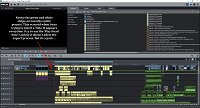
Thank you any ideas? Here's what I've completed so far: http://www.media-historical.com/Artemis-II.mp4

My Best - Mike

Last changed by CarpentersMate

For Magix: Running Windows 10 Professional 64 bit - Dell Precision Workstation 3620 - i7 7700K 4.20 GHz Processor - 32GB Memory - (onboard video), Asus PCI Sound Card - iGPU - Two Twin esata 2TB External Drives. And for other software: Two Mac Pro Desktops with PCI & PCIe Soundcards & nVidia GeForce Graphics Cards - Mimimum memory of 16GB with #10 2TB esata Twin External Drives.


Comments

AAProds wrote on 4/25/2026, 10:21 PM

@CarpentersMate

Looking good there, Mike! That looks like a very detailed project; and so far, and excellent video. That really was a special event.

The green line is the volume curve; hide it by right-clicking on the audio object and unticking "Volume curve".

You can't have two projects open at the same time, but you can have multiple movies open. The movies are the tabs you see. In yours, there's only one movie, "Moon Thing Video".

Copy to a new project

If you want to copy an object from there to a NEW project ie a blank project, "copy" (as per Windows CTRL C or right-click) , click the + sign to open a new movie tab, then click in the timeline area and paste it.

Then, just delete the first movie tab and do a "Save Project As..." and give your new project a name. Your title (or whatever you copied) will be in that new project/movie.

Copy to an existing project

If you want to copy an object from one project to another, already-existing project (as opposed to a "New" project), Just go through the motions of opening the second project. Magix will ask if you want to close the current project; answer "Add new project". The second project (with it's movie/s) will open in a new tab/s.

Then just copy your objects from the first project's movie to the second project's movie, then delete the first project's movie. You'll be left with the second project with the copied objects in the movie. "Save" as necessary.

Yet another option is to copy the objects to a new movie (new tab created with the +), paste your objects in that new movie, then File>manage project>Export movie file. The movie will be exported as an MVD (a Magix "movie", as opposed to a Magix Project [MVP], which you can then import into any other project over and over.

If it is a title that you want to reuse, it would be simpler to just save it as a title template for re-use. On the title, right-click> Save as Title Template.

Another trick to know using title templates is that, as long as a title is involved, you can save all-manner of objects and effects using the "Save as Special Effect" command. For example, a title with an image/video and soundtrack. Highlight all the objects (which must include a title). Right-click on the title then choose "Save as special effect". It gets saved in the "My Own" Templates folder. Drag it down onto the timeline and you'll get the title, audio and image/video all together. This is very handy if you have a complicated intro with a title.

I had a chuckle when the commentator said "ride the most powerful rocket" then did a long pause when he remembered that Starship is the most powerful rocket. That aside, is was a terrific effort by NASA. I reckon the best shot was the airborne shot from the side (1:07 on your movie), which, I believe, was taken from a Cessna orbiting the pad.

All my forum comments are based on or refer to my System 1.

System 1

Windows 11 v23H2 severely modified by Openshell and ExplorerPatcher

Power supply: 850W Cooler Master (should have got modular)

CPU: Intel i7 13700K running at 3400mhz, cooled by a Kraken 2x140mm All In One liquid cooler.

RAM: 64gb (2x32gb sticks) G.Skill "Ripjaws" DDR4 3200Mhz

GPU 1: iGPU UHD 770

GPU 2: NVidia RTX 3060Ti Windforce 8gb

C drive: NVME 500gb

Bluray Burner: Pioneer BDR-212D

Various other SSD and HDDs.

Monitor: 27"/68cm Samsung, 2560 x 1440, 43 pixels/cm.

MEP 2021 version 20.0.1.80

Magix Video Deluxe 2026 Ultimate (although it comes up as "Premium").

Magix Video Easy version 7.0.1.145

System 2

(Still in use for TV and videotape capture)

Windows 10 Home Version 2009

CPU: i5-750 at 2670mhz with 12gb RAM

Onboard IEEE1394 (Firewire) port

GPU: ATI Radeon HD 4770 (512mb) which is ignored by MEP

Hard drives: C Drive 256gb SSD, various other HDDs.

Monitor: Dell 22"/56cm, 1680x1050, 35 pixels/cm

Movie Studio 2023

Movie Studio 2024

VPX 12

System 3

Lenovo Yoga laptop

Windows 11

CPU i5-8250U (1,6ghz)

8GB DDR4 2400 RAM

GPU iGPU UHD620

2TB NVME HDD

Video Deluxe 2026

johnebaker wrote on 4/26/2026, 1:20 AM

@CarpentersMate, @AAProds

Hi Mike, Al

. . . . The green line is the volume curve; hide it by right-clicking on the audio object and unticking "Volume curve". . . . .

Close Al, that is the correct procedure for the Volume curve on a single audio object, yellow arrow in image below.

The green and white lines are the Volume and Pan (stereo position) Track Curves, as shown below, blue arrow.

To clear these right click the track, or an audio object in that track, they are displayed on and select Display track curves, the keyboard shortcut is Alt + K key.

John EB

Last changed by johnebaker on 4/26/2026, 1:24 AM, changed a total of 2 times.

VPX 17, Video deluxe 2026, and earlier versions MEP 2015 and 2016, Music Maker Premium 2026.

PC - running Windows 11 25H2 Professional on Intel i7-8700K 3.2 GHz, 16GB RAM, RTX 2060 6GB 192-bit GDDR6, 1 x 1Tb Sabrent NVME SSD (OS and programs), 2 x 4TB (Data) internal HDD + 1TB internal SSD (Work disc), + ext backup HDDs.

Laptop - Lenovo Legion 5i Phantom - running Windows 11 25H2 on Intel Core i7-10750H, 16GB DDR4-SDRAM, 512GB SSD, 43.9 cm screen Full HD 1920 x 1080, Intel UHD 630 iGPU and NVIDIA GeForce RTX 2060 (6GB GDDR6)

Sony FDR-AX53e Video camera, DJI Osmo Action 3 and Sony HDR-AS30V Sports cams.

AAProds wrote on 4/27/2026, 3:28 AM

@CarpentersMate

Here you go, Mike. Rough and ready but it should help you. Sing out if you get stuck.

All my forum comments are based on or refer to my System 1.

System 1

Windows 11 v23H2 severely modified by Openshell and ExplorerPatcher

Power supply: 850W Cooler Master (should have got modular)

CPU: Intel i7 13700K running at 3400mhz, cooled by a Kraken 2x140mm All In One liquid cooler.

RAM: 64gb (2x32gb sticks) G.Skill "Ripjaws" DDR4 3200Mhz

GPU 1: iGPU UHD 770

GPU 2: NVidia RTX 3060Ti Windforce 8gb

C drive: NVME 500gb

Bluray Burner: Pioneer BDR-212D

Various other SSD and HDDs.

Monitor: 27"/68cm Samsung, 2560 x 1440, 43 pixels/cm.

MEP 2021 version 20.0.1.80

Magix Video Deluxe 2026 Ultimate (although it comes up as "Premium").

Magix Video Easy version 7.0.1.145

System 2

(Still in use for TV and videotape capture)

Windows 10 Home Version 2009

CPU: i5-750 at 2670mhz with 12gb RAM

Onboard IEEE1394 (Firewire) port

GPU: ATI Radeon HD 4770 (512mb) which is ignored by MEP

Hard drives: C Drive 256gb SSD, various other HDDs.

Monitor: Dell 22"/56cm, 1680x1050, 35 pixels/cm

Movie Studio 2023

Movie Studio 2024

VPX 12

System 3

Lenovo Yoga laptop

Windows 11

CPU i5-8250U (1,6ghz)

8GB DDR4 2400 RAM

GPU iGPU UHD620

2TB NVME HDD

Video Deluxe 2026

CarpentersMate wrote on 4/29/2026, 5:37 PM

Hey Al & John EB! 😀

Sorry for the delay: (Always happy to see you guys again)! 😄 Excellent instructions both Al & John EB, (thank you)! Really nice detailed tutorial from Al! "Right click the track audio object in the track - display track curves"  

Here's an interesting mystery for you guys: This particular storage drive is internally bay connected. NASA is generous providing public downloads, (many in 4K). *After accidentally leaving my desktop turned on and unattended for a few hours, (with MEP closed down), I went back to open that same Magix project and ALL the NASA High Res downloads were EMPTY! I closed down the project, the machine and Re-Booted several times. No Luck! EVERY previous NASA file was GONE! When I went back to the NASA download site, different files were available but none were above HD and labeled differently as: 'Official NASA Hightlights'. Is it possible to invade a PC and  precisely DELETE specific files? And BTW, I ran Malwarebytes 4.6.17 several times = No Infections. I realize the U.S. is postering itself to get ahead of China ✌️ I can re-compose that project, (its only a fun project). 😎

Mike 😱

Last changed by CarpentersMate on 4/29/2026, 5:48 PM, changed a total of 5 times.

For Magix: Running Windows 10 Professional 64 bit - Dell Precision Workstation 3620 - i7 7700K 4.20 GHz Processor - 32GB Memory - (onboard video), Asus PCI Sound Card - iGPU - Two Twin esata 2TB External Drives. And for other software: Two Mac Pro Desktops with PCI & PCIe Soundcards & nVidia GeForce Graphics Cards - Mimimum memory of 16GB with #10 2TB esata Twin External Drives.


AAProds wrote on 4/30/2026, 12:43 AM

@CarpentersMate

Mike, ouch!

Is it possible to invade a PC and  precisely DELETE specific files?

Unless you have serious security issues with your setup, the answer to that would be No.

When you opened the project again, did MEP protest that it couldn't find your video files?

Check the Recycle Bin?

I was able to download a UHD/4K file just now, this one:

https://images-assets.nasa.gov/video/KSC-04012026-C4829/KSC-04012026-C4829~orig.mp4


All my forum comments are based on or refer to my System 1.

System 1

Windows 11 v23H2 severely modified by Openshell and ExplorerPatcher

Power supply: 850W Cooler Master (should have got modular)

CPU: Intel i7 13700K running at 3400mhz, cooled by a Kraken 2x140mm All In One liquid cooler.

RAM: 64gb (2x32gb sticks) G.Skill "Ripjaws" DDR4 3200Mhz

GPU 1: iGPU UHD 770

GPU 2: NVidia RTX 3060Ti Windforce 8gb

C drive: NVME 500gb

Bluray Burner: Pioneer BDR-212D

Various other SSD and HDDs.

Monitor: 27"/68cm Samsung, 2560 x 1440, 43 pixels/cm.

MEP 2021 version 20.0.1.80

Magix Video Deluxe 2026 Ultimate (although it comes up as "Premium").

Magix Video Easy version 7.0.1.145

System 2

(Still in use for TV and videotape capture)

Windows 10 Home Version 2009

CPU: i5-750 at 2670mhz with 12gb RAM

Onboard IEEE1394 (Firewire) port

GPU: ATI Radeon HD 4770 (512mb) which is ignored by MEP

Hard drives: C Drive 256gb SSD, various other HDDs.

Monitor: Dell 22"/56cm, 1680x1050, 35 pixels/cm

Movie Studio 2023

Movie Studio 2024

VPX 12

System 3

Lenovo Yoga laptop

Windows 11

CPU i5-8250U (1,6ghz)

8GB DDR4 2400 RAM

GPU iGPU UHD620

2TB NVME HDD

Video Deluxe 2026

me_again wrote on 4/30/2026, 9:10 AM

@CarpentersMate

Greetings Mike,

Assuming that MEP couldn't find the photos and they aren't in the Recycle Bin as Al suggested, then this is a long shot but may be worth a try.

If the computer was left on for hours, is it possible that Malwarebytes performed an automatic system scan then (incorrectly) found the NASA photos to be a potential system threat and quarantined them?

I don't think photos are usually flagged by antivirus/malware programs but stranger things have happened. I've never used malwarebytes so I could be totally wrong.

If the photos have been quarantined, to choose items you want to keep or remove, follow these instructions (from their website):

  • Open Malwarebytes
  • Click the Detection History card.
  • In the Quarantined items tab, check the boxes of the items you want to restore or delete.
  • Click the Restore or Delete button. Deleting the items permanently removes them from your device.

If the photos aren't there, then maybe a 3rd party program can be of help. I use ERASER from Piriform (the CCleaner people) which is free and never given me any trouble over the past few years but has got me out of trouble (so to speak) more than a few times. Just remember not to recover any found files to the same drive from which they disappeard.

Sorry I can't be any more positive about your unfortunate predicament.

AndyW

ps - if you've alrady tried these two suggestions then don't bother reading this post 😂😇😉

"Just when I think I've learned the workrounds of MEP/MS the bounders go and update it"

Aorus Z690 Elite DDR4 Motherboard

12th Gen Intel(R) Core(TM) i7-12700K, 3600 Mhz, 12 Core(s) 20 Logical Processor(s)

64gb (4x16gb sticks) DDR4 3200Mhz

Intel(R) UHD Graphics 770

Gigabyte GeForce RTX 4060 Eagle OC 8Gb DDR6 DLSS3 Windforce

Corsair RM750 PSU, be quiet! Pure Rock 2 cooling

AOC Ultrawide CU34G4 Monitor

System drive 500Gb 4.0NVMe M,2 SSD, dedicated video/audio drive 2Tb Gen 4 NVMe SSD, 2x 500Gb Local Fixed Disks (Music etc), USB3 expansion drive 5Tb and 2Tb

Audio Onboard ALC1220 Amp-Up, Windows 11 Home updated as and when

Movie Studio 2025 Suite, Photo Manager Deluxe 13

Norton 360

proDAD Mercslli Pro v6

Neat Video v6

BCC Chroma Key Studio 2024

No end of NewBlue effects gather over the years plus a few Hitfilm and one set of Ignite Cine

One wife, two sons, two grandchildren and a partridge in a pear tree

CarpentersMate wrote on 4/30/2026, 9:20 PM

Hi Andy & AA!

Appreciate your all your concern ... (thank you). This is just fun project. BTW, the NASA stills weren't touched, only the video was snatched by the invisible demon, (No Quarantined items). As I recall, the main project file MVP needs to be nestled in the Documents Folder. There's been some debate that Media also needs to be located in the Documents Folder as well? However I'm sure others simply deal with external drives since Media can be humungus. I think somehow the project file wound up in the same external drive, (not good). Nevertheless, those video files should have retained their location. So yeah I got sloppy (not like me). *The next edit should be much improved with many more believable sound effects. I'm making sure the MVP file doesn't wander off into space. 😁

BTW: I was 13 years old when Alan Shepard brought the U.S. up to date. I already had a Lafayette Radio Electronics Open Reel Tape Machine and taped every Mercury flight featuring Shorty Powers "A-Ok" (All The Network Audio).

Last changed by CarpentersMate on 4/30/2026, 9:24 PM, changed a total of 4 times.

For Magix: Running Windows 10 Professional 64 bit - Dell Precision Workstation 3620 - i7 7700K 4.20 GHz Processor - 32GB Memory - (onboard video), Asus PCI Sound Card - iGPU - Two Twin esata 2TB External Drives. And for other software: Two Mac Pro Desktops with PCI & PCIe Soundcards & nVidia GeForce Graphics Cards - Mimimum memory of 16GB with #10 2TB esata Twin External Drives.


AAProds wrote on 4/30/2026, 10:13 PM

@CarpentersMate

Mike, I would strongly suggest you keep ALL a project's files, including the MVP, in the same folder, and preferably not on your C drive/Documents folder.

All my forum comments are based on or refer to my System 1.

System 1

Windows 11 v23H2 severely modified by Openshell and ExplorerPatcher

Power supply: 850W Cooler Master (should have got modular)

CPU: Intel i7 13700K running at 3400mhz, cooled by a Kraken 2x140mm All In One liquid cooler.

RAM: 64gb (2x32gb sticks) G.Skill "Ripjaws" DDR4 3200Mhz

GPU 1: iGPU UHD 770

GPU 2: NVidia RTX 3060Ti Windforce 8gb

C drive: NVME 500gb

Bluray Burner: Pioneer BDR-212D

Various other SSD and HDDs.

Monitor: 27"/68cm Samsung, 2560 x 1440, 43 pixels/cm.

MEP 2021 version 20.0.1.80

Magix Video Deluxe 2026 Ultimate (although it comes up as "Premium").

Magix Video Easy version 7.0.1.145

System 2

(Still in use for TV and videotape capture)

Windows 10 Home Version 2009

CPU: i5-750 at 2670mhz with 12gb RAM

Onboard IEEE1394 (Firewire) port

GPU: ATI Radeon HD 4770 (512mb) which is ignored by MEP

Hard drives: C Drive 256gb SSD, various other HDDs.

Monitor: Dell 22"/56cm, 1680x1050, 35 pixels/cm

Movie Studio 2023

Movie Studio 2024

VPX 12

System 3

Lenovo Yoga laptop

Windows 11

CPU i5-8250U (1,6ghz)

8GB DDR4 2400 RAM

GPU iGPU UHD620

2TB NVME HDD

Video Deluxe 2026

CarpentersMate wrote on 4/30/2026, 10:52 PM

Thank you for that - Embarrassed to say, somehow I got that wrong? I mistakenly recall a forum discussion indicating MVP needs to be in 'C' drive (where the OS resides)? Allow me to understand: I've previously broadly separated media into separate folders; 'Sound Effects' - 'Stills' - 'Video' etc. (All Media Stored Externally). Understandably, 'Sound FX' (for example), can be accessed by any project. With Magix, is it actually preferable to put 'EVERYTHING' pertinent into ONE project folder, inc. MVP, (per Magix project)?

Last changed by CarpentersMate on 4/30/2026, 11:10 PM, changed a total of 3 times.

For Magix: Running Windows 10 Professional 64 bit - Dell Precision Workstation 3620 - i7 7700K 4.20 GHz Processor - 32GB Memory - (onboard video), Asus PCI Sound Card - iGPU - Two Twin esata 2TB External Drives. And for other software: Two Mac Pro Desktops with PCI & PCIe Soundcards & nVidia GeForce Graphics Cards - Mimimum memory of 16GB with #10 2TB esata Twin External Drives.


johnebaker wrote on 5/1/2026, 3:01 AM

@CarpentersMate

Hi Mike

. . . . I've previously broadly separated media into separate folders . . . .

I do something similar, this is the base folder structure I use. A complete project is stored withing its own named 'master' folder.

The EDL folder contains a document listing all media files in the different camera video/images folders sorted by date/time.

Most of my projects are for BD disc and are sequential, eg holidays, and the list helps me build the various days activities etc in the correct order, as I often end up with a very large number of media files for any given project.

When I get media form other sources than my own, additional folders are added as necessary, this stops potential file name clashes, which I have had in the past from different cameras using the same file naming convention.

HTH

John EB

VPX 17, Video deluxe 2026, and earlier versions MEP 2015 and 2016, Music Maker Premium 2026.

PC - running Windows 11 25H2 Professional on Intel i7-8700K 3.2 GHz, 16GB RAM, RTX 2060 6GB 192-bit GDDR6, 1 x 1Tb Sabrent NVME SSD (OS and programs), 2 x 4TB (Data) internal HDD + 1TB internal SSD (Work disc), + ext backup HDDs.

Laptop - Lenovo Legion 5i Phantom - running Windows 11 25H2 on Intel Core i7-10750H, 16GB DDR4-SDRAM, 512GB SSD, 43.9 cm screen Full HD 1920 x 1080, Intel UHD 630 iGPU and NVIDIA GeForce RTX 2060 (6GB GDDR6)

Sony FDR-AX53e Video camera, DJI Osmo Action 3 and Sony HDR-AS30V Sports cams.

CarpentersMate wrote on 5/2/2026, 7:31 AM

Thanks EVERYONE!

For Magix: Running Windows 10 Professional 64 bit - Dell Precision Workstation 3620 - i7 7700K 4.20 GHz Processor - 32GB Memory - (onboard video), Asus PCI Sound Card - iGPU - Two Twin esata 2TB External Drives. And for other software: Two Mac Pro Desktops with PCI & PCIe Soundcards & nVidia GeForce Graphics Cards - Mimimum memory of 16GB with #10 2TB esata Twin External Drives.